
Resources
Guides & instructions
Clear, step-by-step instructions with real screenshots from TekDot POS. Share them with your staff so everyone knows exactly what to tap.
13 guides
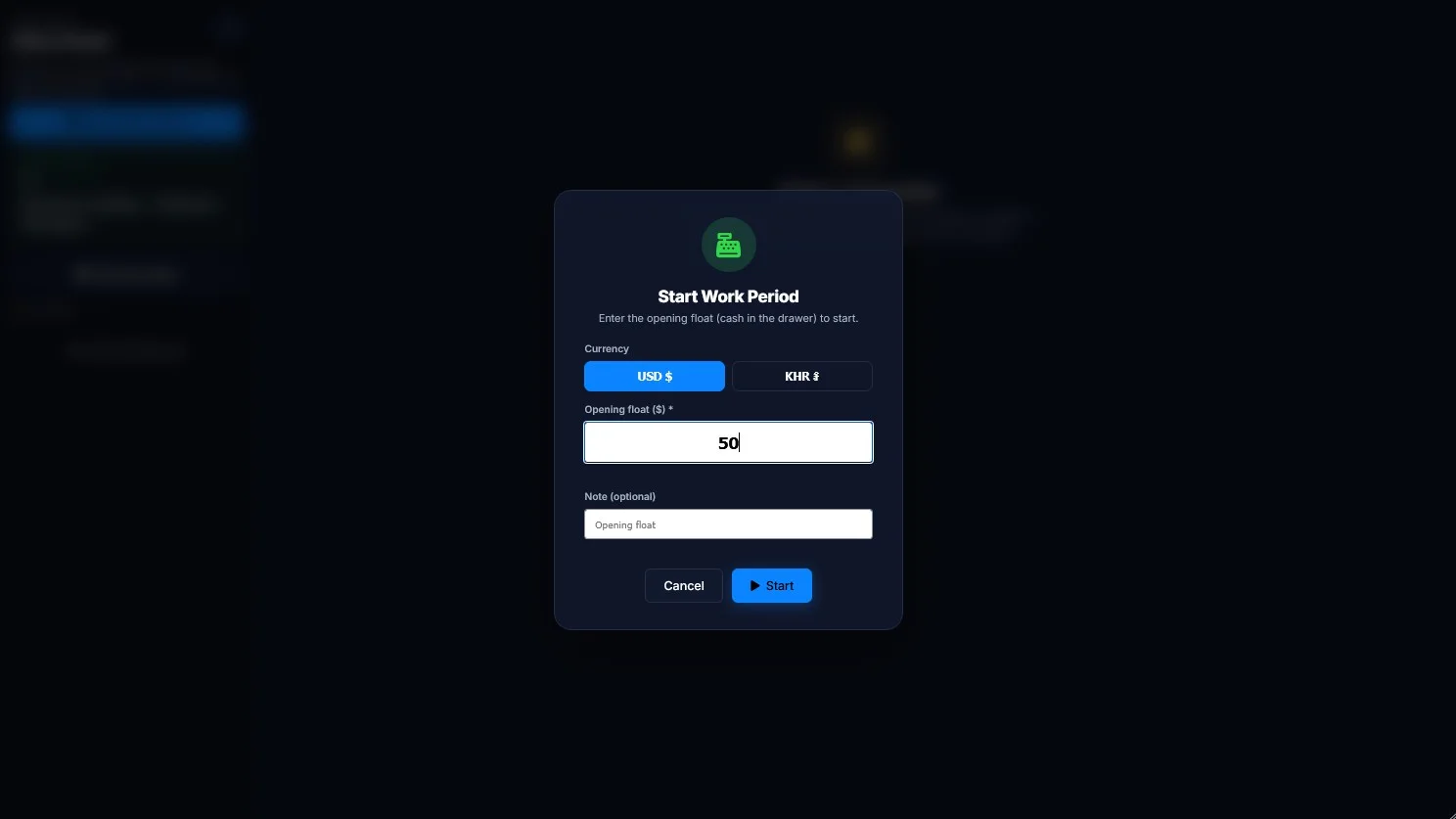
How to start a shift (work period)
Log in with your PIN, count the opening float, start the work period and take your first order.
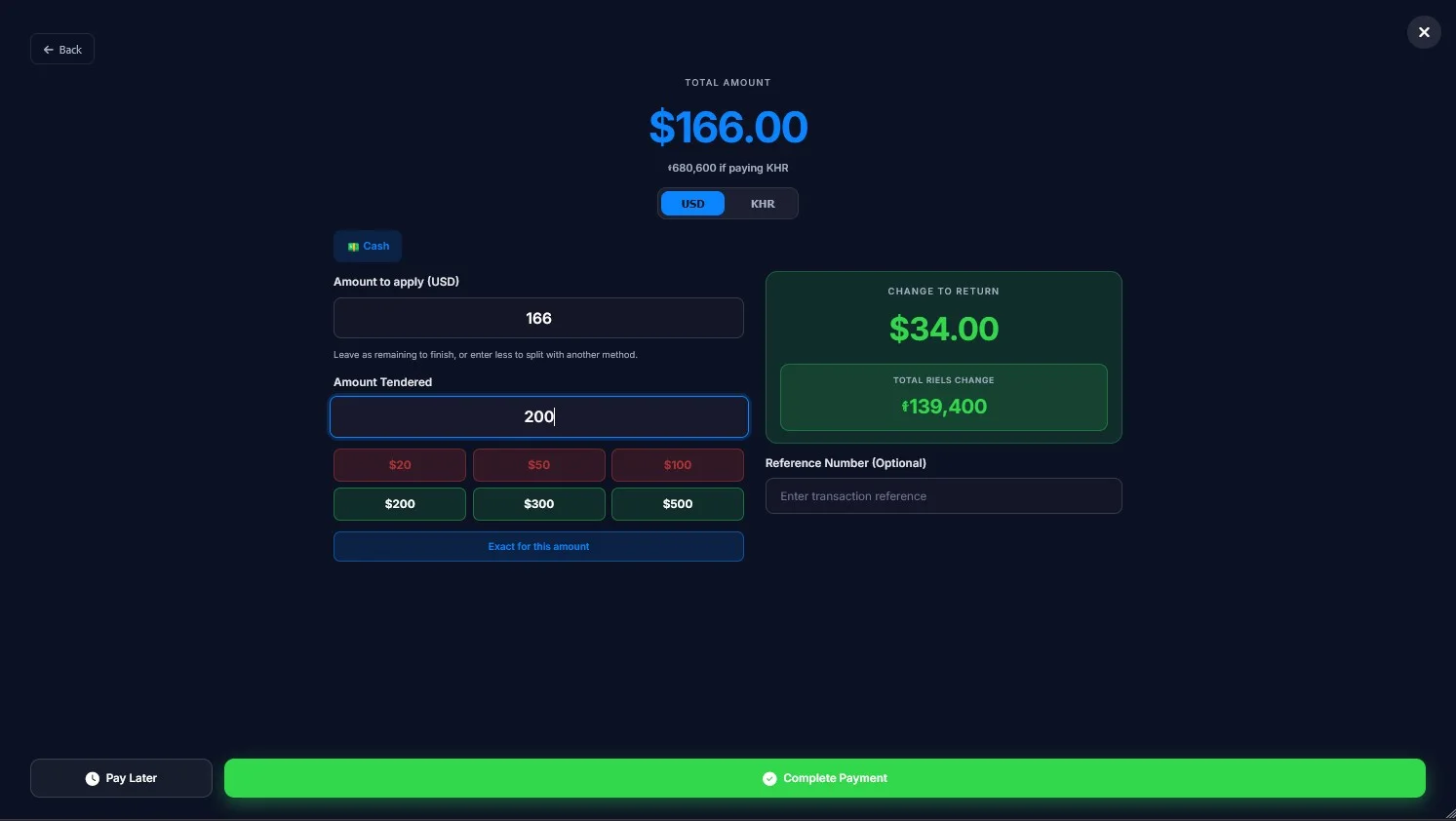
How to take a cash payment
Open the table, choose Cash, enter the cash received, give the change and print the receipt.
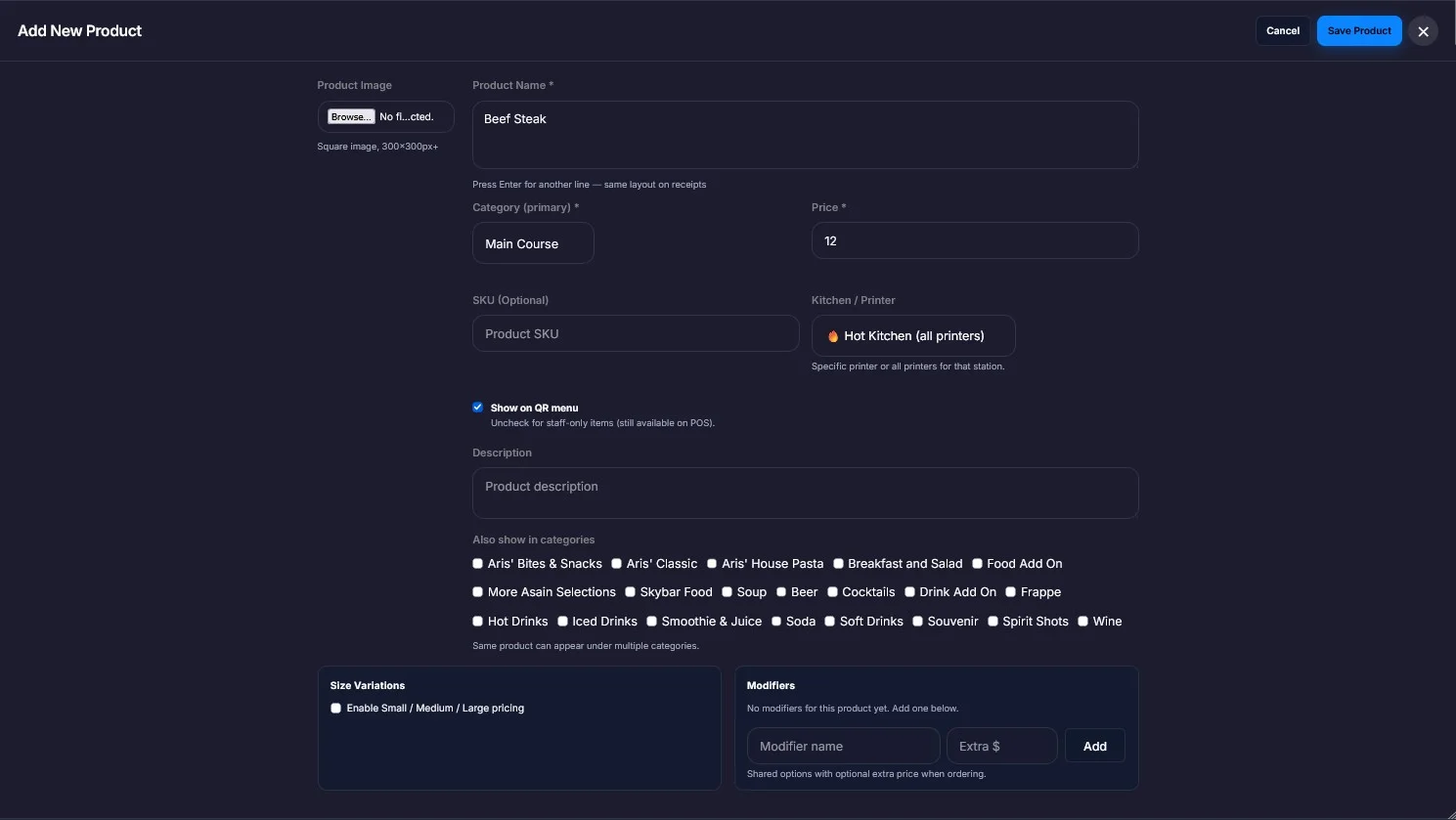
How to add a category and products
Create a category first, then add a product with its name, price, image and kitchen printer.
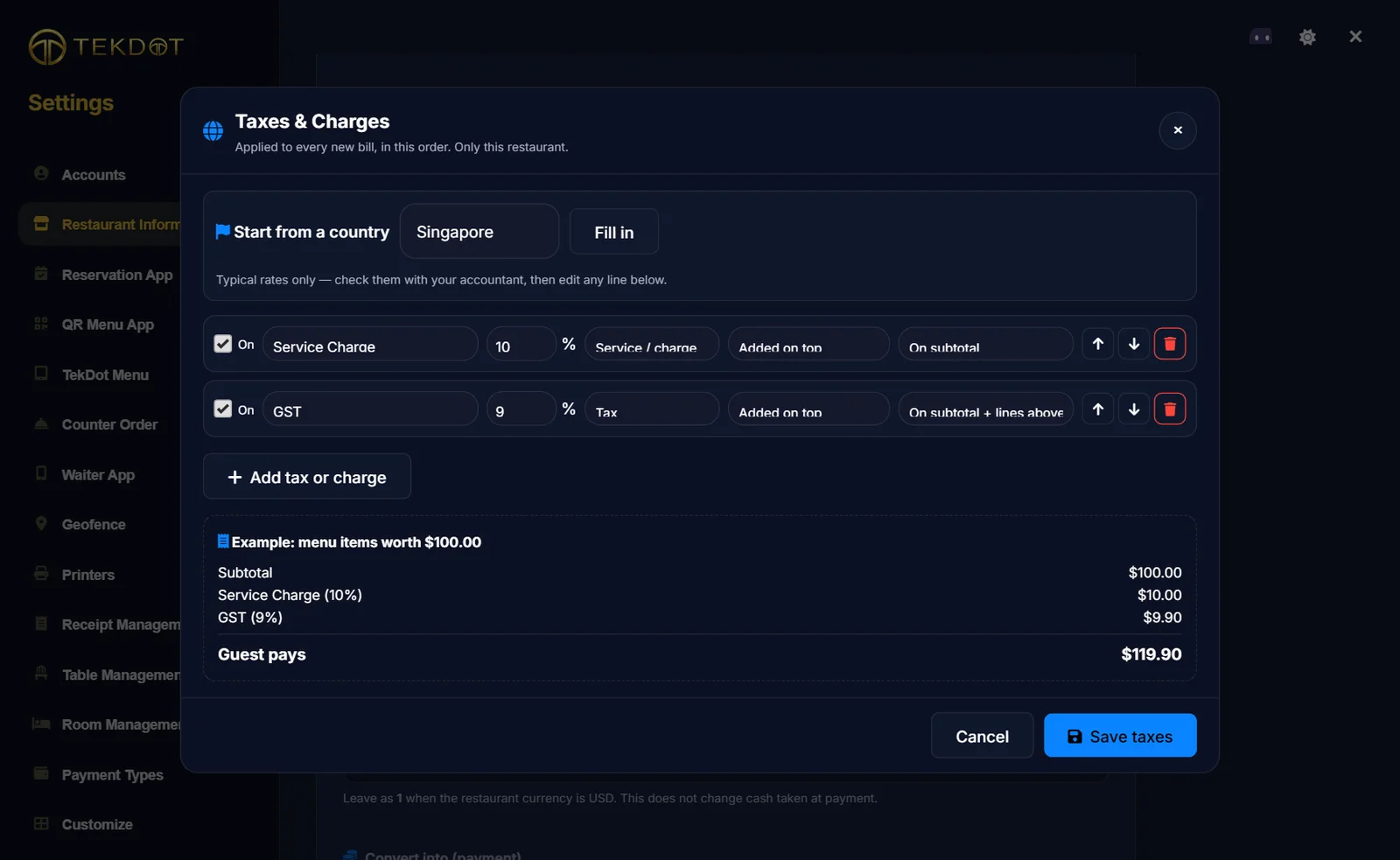
How to set up taxes: VAT, GST, Sales Tax & Service Charge
Pick your country, check the rates, and choose whether tax is added on top or already in your prices.
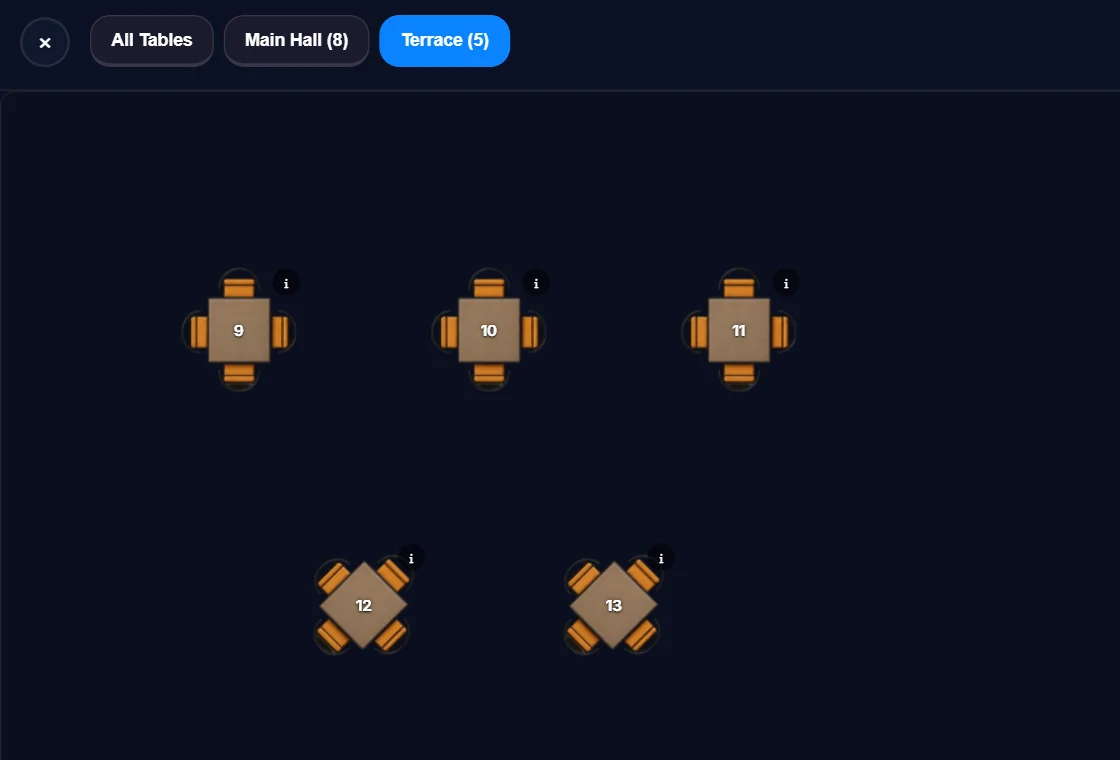
How to add tables and arrange your floor plan
Add each table with its number and area, then drag, resize and rotate them to match your restaurant.
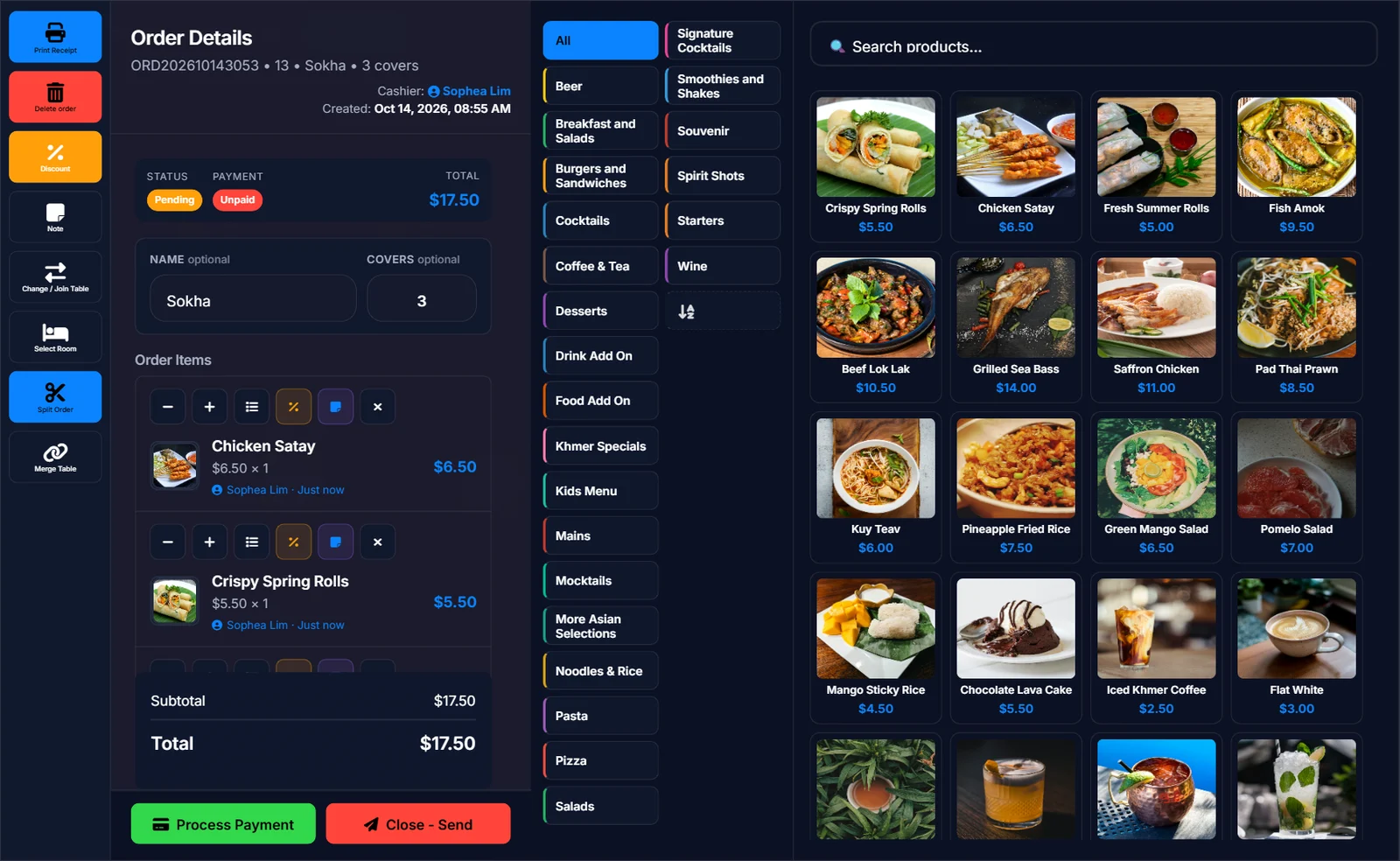
How to take a table order
Open a table, add items with options and kitchen notes, and send the order to the kitchen.
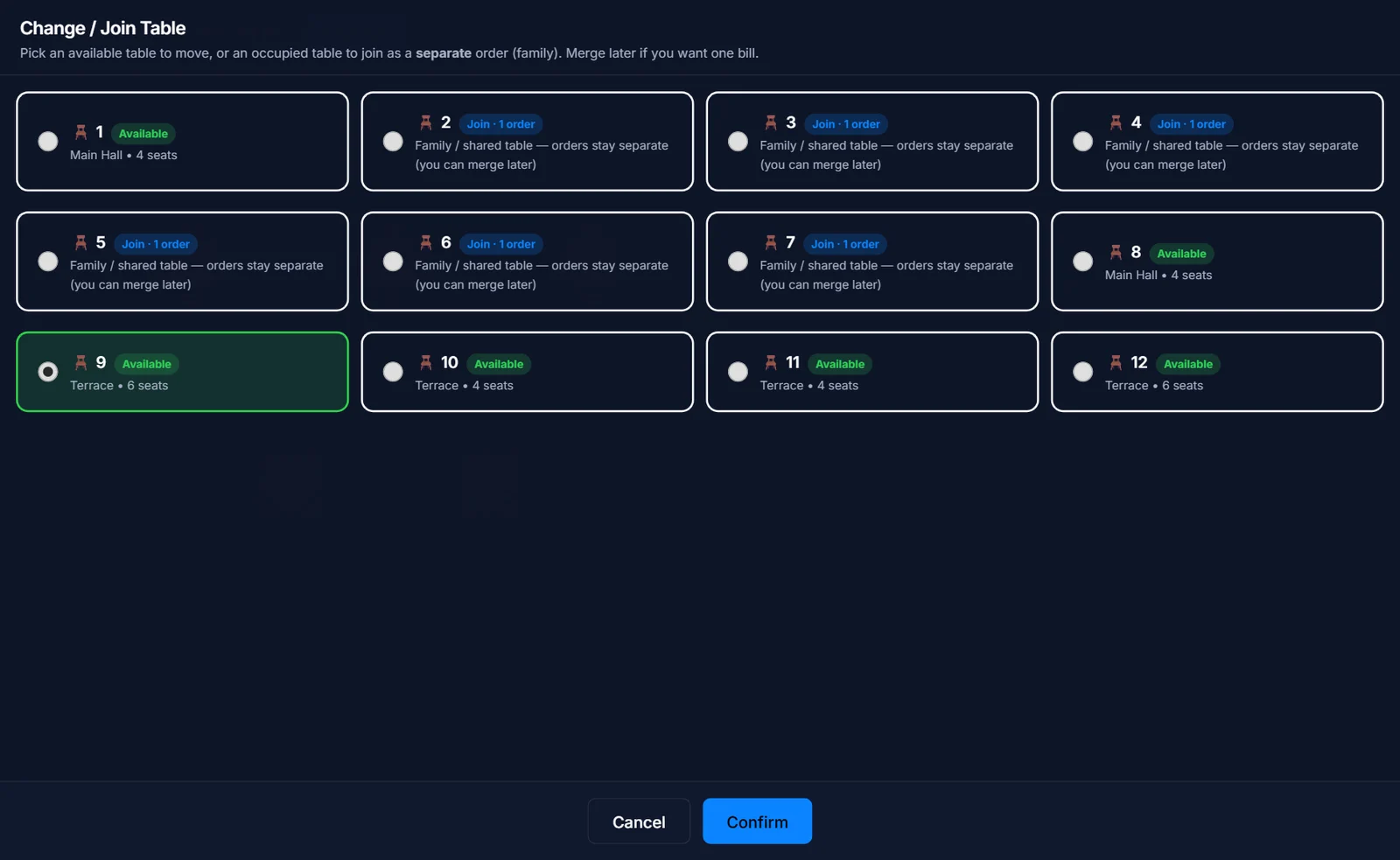
How to move an order to another table
Guests changed tables? Move their whole order to a free table, or join a table that already has guests.
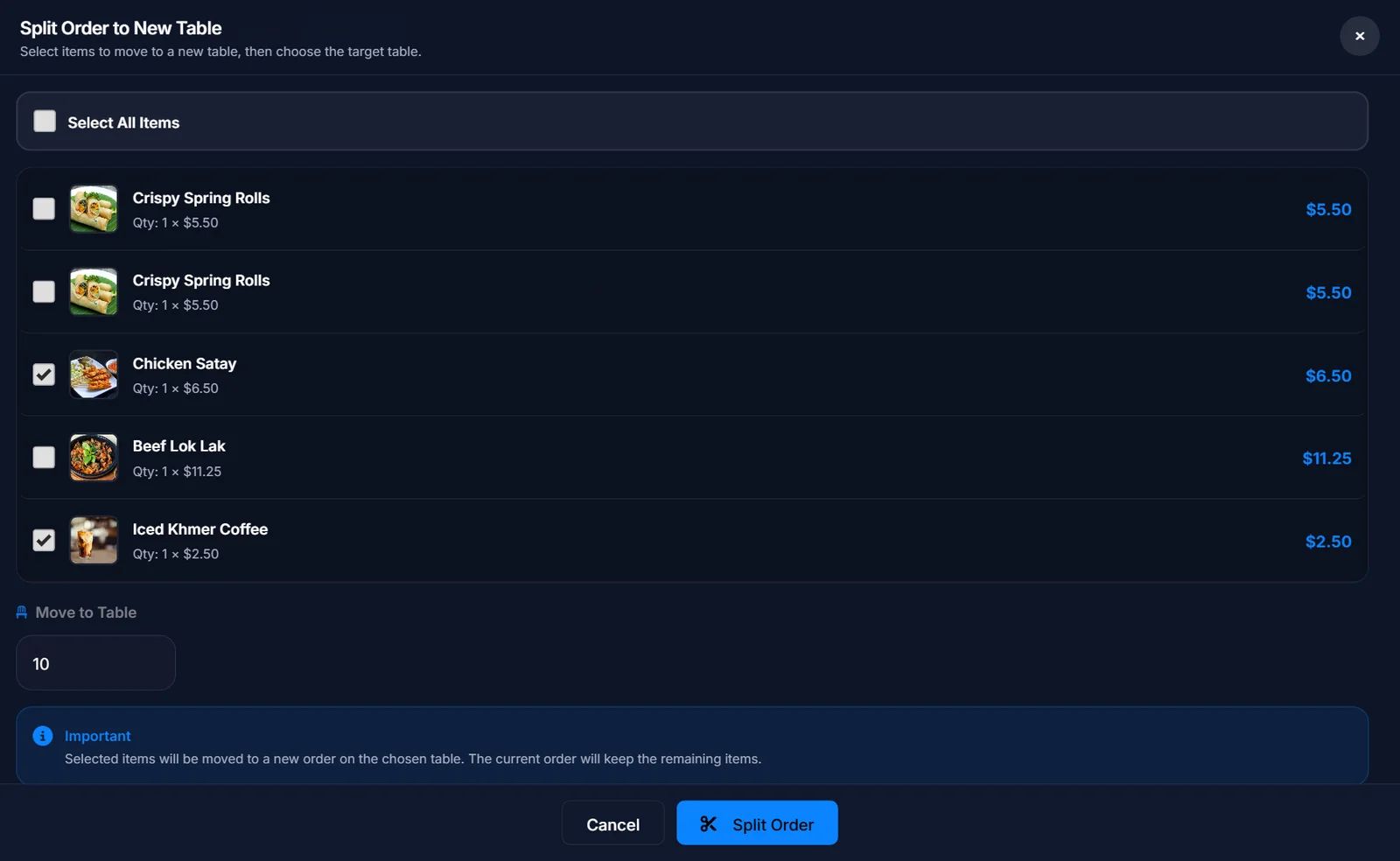
How to split an order
Move chosen items to a new order on another table so guests can pay separately.
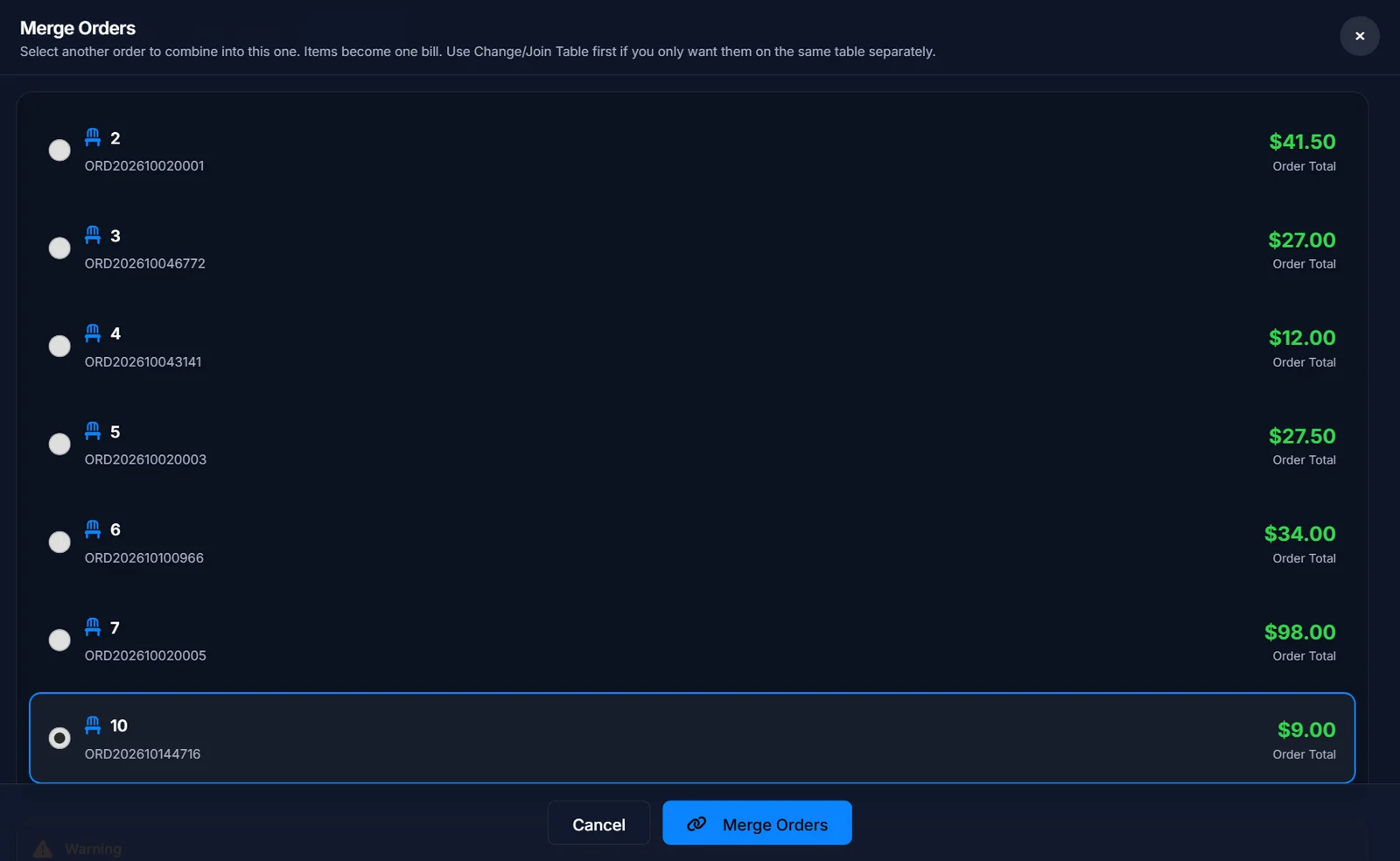
How to merge orders into one bill
Two tables paying together? Combine their orders into one bill.
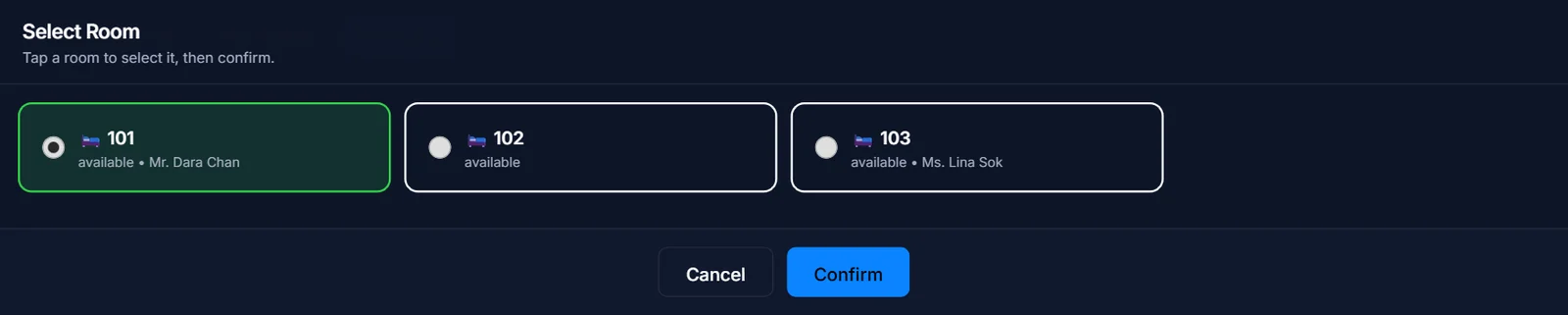
How to charge an order to a hotel room
Hotel guest eating in the restaurant? Move the table order to their room bill.
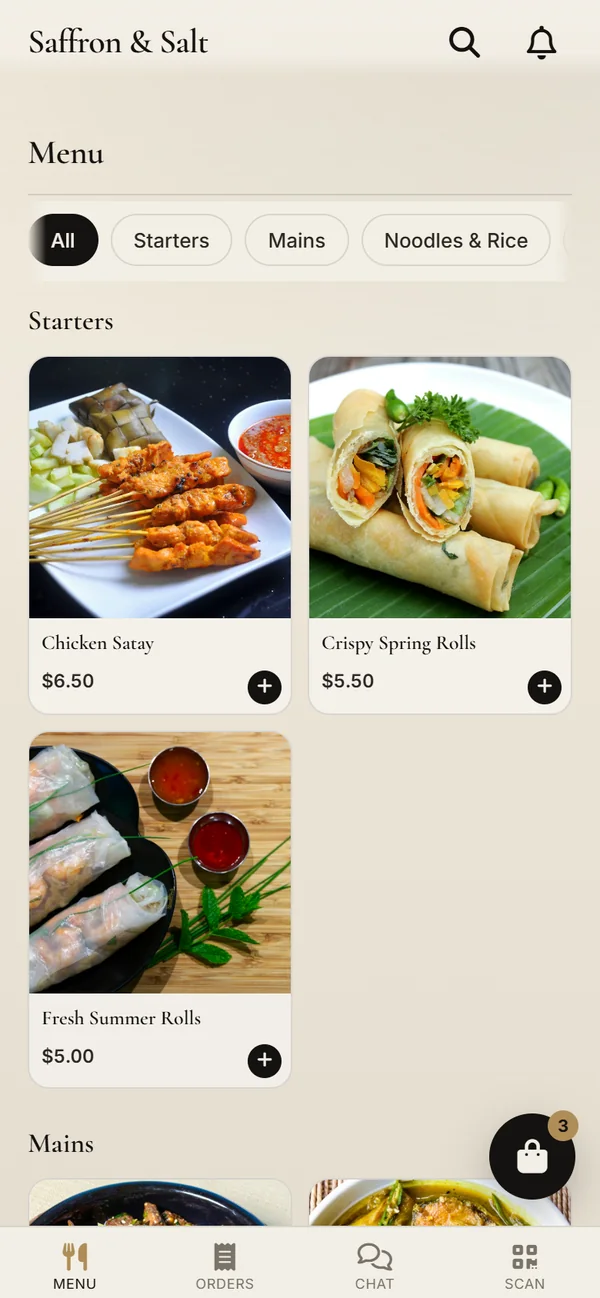
How to use the QR Menu app
Print a QR code for each table. Guests order from their phone and you accept it on the POS.
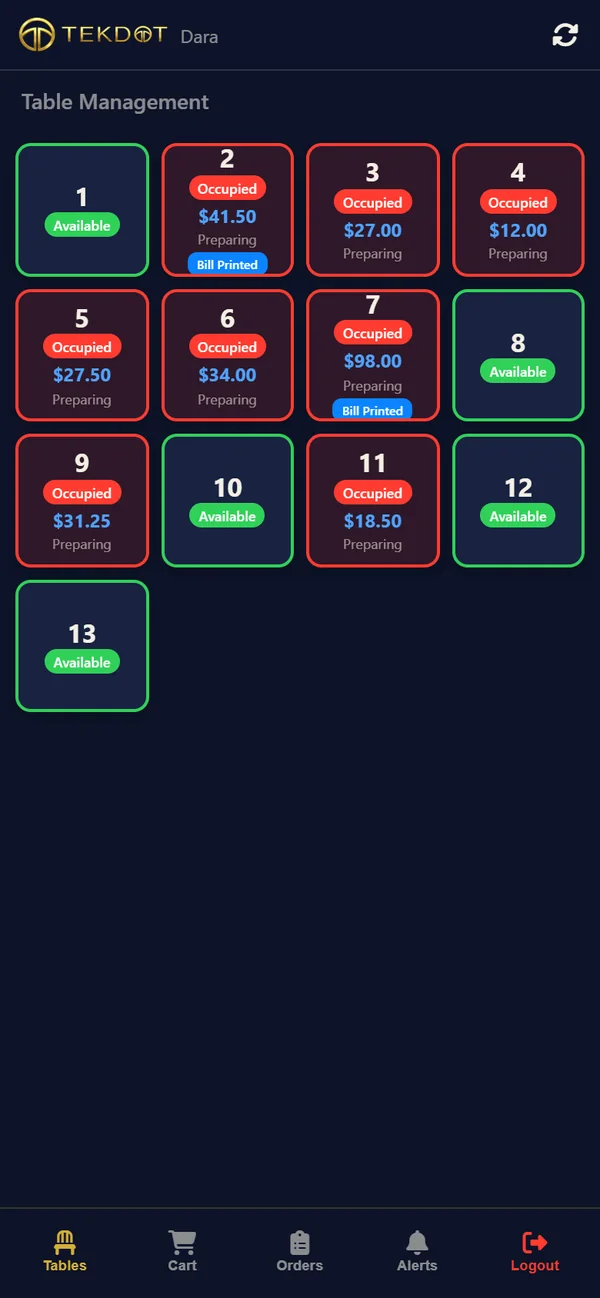
How to use the Waiter App (TekDot GO)
Waiters sign in with a PIN, take table orders on their phone and send them to the kitchen.
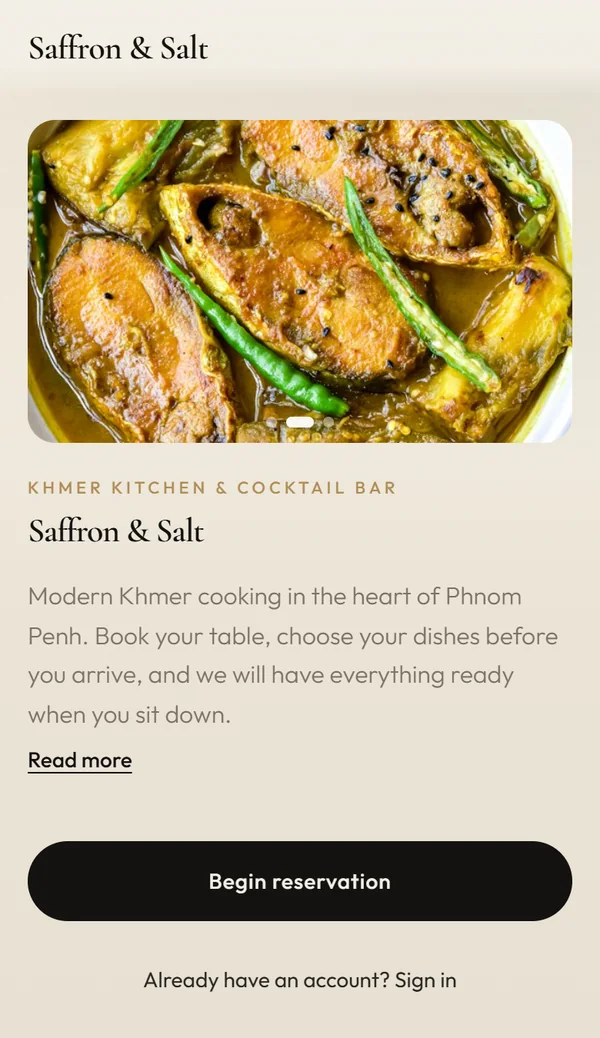
How to use the Reservation app
Guests book a table online and can pre-order. You confirm the booking and assign a table on the POS.
Need help now? Contact us.
No guides found
Try a different word, for example payment, shift or product.
Can't find it? Ask us and we'll help.